Best Practices for Processing Credit Cards in Rails

This article defines a real-life scenario for a payment processing flow that allows an organization to process online donations for multiple charities. Each charity will have donation widgets embedded on numerous and diverse web sites, allowing users to select a a donation amount and then click a button to initiate a payment.

A set of rules were defined to ensure the security of the payment processing flow, i.e – the set of web pages involved in accomplishing the transaction. The payment processing flow was implemented in Rails, and some of the technical details are therefore Rails-specific, but the general lessons are applicable to any technology used to manipulate data securely.

  1. Minimize external entry points. The payment processing flow needs to be secure, with strict controls on where and how users can enter the flow. In this case, there should be a defined URL to which information (including the relevant charity and the selected donation amount) can be posted by the donation widgets.This Payment Data Entry page will show users the posted information about the donation, plus allow users to enter additional information, such as credit card data, to complete the transaction. The Rails controller action to display this page should be the only page in the payment flow that has the Rails authenticity token turned off.In general, the authenticity token ensures that a Rails-based form cannot be driven remotely by an external site or program. In this case, it has to be turned off so remotely hosted forms (the donation widgets) can post information to the web page.The Rails authenticity token can be turned off for a controller action by adding the following code to a controller:   skip_before_filter :verify_authenticity_token, :only => [ :create ]In Rails, the authenticity token is on by default.
  2. Use the Rails authenticity token whenever possible. All other payment-related pages, other than a clearly defined initiation page (our Payment Data Entry page), should use the Rails authenticity token so they can’t be remotely driven by external sites or programs. The authenticity token allows Rails to verify that data was posted to a web page by another web page on the local web site.Note: This means that the Payment Data Entry page will accept only limited information from a remote location (so it can show the relevant charity and payment amount). However, the data entry form on that page does use the authenticity token, so that page must be submitted manually by a user.
  3. Credit card information is carried from page to page via POST actions. No credit card information is stored in the local database. The purpose of the payment processing flow is to facilitate transactions in a customer-friendly way. The payment processing gateway (such as PayPal, ProfitStars or a credit card gateway) with which the payment flow is integrated will be the database of record for detailed transactions, and the security of credit card data will ultimately be their problem.
  4. Use a session variable to store the transaction ID. A transaction is recorded in the local database for a payment, and includes only relatively non-sensitive information such as the name of the customer, the charity to receive the donation, the amount and the date. Once a transaction has been created, the ID is carried from page to page via a session variable. Users will have no external way to specify a transaction ID in order to view data that does not belong to them.Note: Why have a local transaction? Well, some transactions might fail or there could be problems with the payment processing gateway. The local transaction provides sufficient information to correlate with the corresponding transaction recorded by the gateway. So, it’s really needed for data integrity checking and debugging if necessary.
  5. “Parameter Filtering” must be turned on so that fields related to credit cards are not stored in the site’s log file. This little detail is often forgotten by individuals implementing payment processing flows, and can result in credit card information being left in plain text in log files.The following code can be used to turn off logging of specified data elements:   filter_parameter_logging :credit_card, :expiration, :name_on_card, :security_code
  6. SSL is used for communication between pages and for communications with a payment processing gateway. This ensures that the traffic is encrypted and greatly reduces the odds that anybody (other than maybe the NSA) can access sensitive data in transit.
  7. Non-SSL access to any of these web pages will be rejected with an appropriate error message. Users cannot elect, either accidentally or on purpose, to perform a transaction without using SSL.

In combination, these rules allowed me to successfully create a secure payment processing flow for a client. In the event of a security audit, these rules allow me to: 1) clearly define for an auditor the risks associated with using and managing the data, and 2) demonstrate that the risk of any sort of data loss from the payment processing flow has been minimized to acceptable industry standards.

Recipe: Default Ordering in Rails

Sometimes it’s convenient to ensure that all rows in a database table are always retrieved in a specified order for consistency. It turns out that this is trivial to do in Rails (both Rails 2.3.x and Rails 3.x).

I had a SETTINGS table in the database that defined the settings that were available in order to customize a product. Anywhere that those settings were listed, I wanted them to be listed in alphabetical order.

In standard Rails fashion, I had a Setting model that corresponded to the database table. As shown below, a default scope can be defined that will automatically be applied whenever find is called for the model (unless overridden by the caller).

Listing 1: The Setting Model (Rails 2.3.x)

   class Setting < ActiveRecord::Base
       default_scope :order => 'name'
   end

Listing 2: The Setting Model (Rails 3.x)

   class Setting < ActiveRecord::Base
       default_scope order(:name)
   end

That’s it. One line of code in Rails 2.3.x or Rails 3.x, and my objective was achieved throughout my entire application.

On another note, AREL can be used in Rails 3.x to chain conditions:

   default_scope where(:deleted_at => nil).order(:name)

Should you need to override a default scope in Rails 3.x, here’s how:

   Setting.with_exclusive_scope.order(:created_at).all

Default scopes can be useful and convenient, just don’t overuse them.

NOVARUG Rails/Facebook Talk

I’ll be giving my “Leveraging Rails to Build Facebook Apps, Version 2.0” talk at the NovaRUG meeting on September 15th. This version of the talk incorporates the recent changes that Facebook has made to its developer ecosystem. It will also be videotaped by the incomparable Don Anderson, although the talk won’t be available online until after I’ve given the talk at SunnyConf in Phoenix, AZ.

Speaking at SunnyConf

SunnyConfI just received word today that I was accepted as a speaker for SunnyConf, Arizona’s first Ruby conference, which will be held September 25, 2010. I’ll be giving a talk on “Leveraging Rails to Build Facebook Applications.” This is version 2.0 of the talk, incorporating major changes that were announced by Facebook at their F8 conference in April.

Creating a Breadcrumb Trail in Rails, Part 2

A breadcrumbs trail is a navigational aid that shows users a hierarchical view of the web pages they’ve traversed. It’s a simple and useful way to orient users within a web site, especially as web sites get deeper and more complex.

This is Part 2 of a series of articles on creating a breadcrumb trail. Part 1 focused on creating the basic code for generating a breadcrumb trail, albeit with a few minor limitations. This article focuses on streamlining the code a little, while packaging it up to be more reusable.

Streamlining the Code

Using the original code from Part 1, the show_breadcrumbs method could be called in a view to generate the HTML for the breadcrumb trail, as shown below:

       <%= show_breadcrumbs(
          ['Home', ['main'], 
           'Tools', ['tools'],
           'Antimatter', ['tools', 'antimatter']],
          :direction => 'left') %>

In the code above, the first argument is an array, where each breadcrumb element is represented by a pair of array entries. The first value is the name of the breadcrumb, e.g. – the name of the link. The second is an array containing the data necessary to construct the link, such as [controller, action] or [url]. In practice, this all turned out be overkill.

As much as possible, most developers nowadays are using a RESTful approach when building Rails web sites. With a RESTful approach, you use map.resourcesin your routes.rb file to define resources, which have well-defined behaviors, e.g. – List, Show, Create, Edit, etc. As a by-product, Rails defines helper methods that can be called in views and controllers to provide the URL for a route. For example, an “articles” resource will possess an articles_url method that represents the List action for instances of that type of resource.

Bottom Line: Most developers are tossing around URLs, rather than controller/action pairs. So, we can simplify the structure that we’ve been using to represent a breadcrumb trail:

       <%= breadcrumbs(
          ['Home', root_url, 
           'Tools', tools_url,
           'Antimatter', antimatter_url],
          :direction => 'left') %>

So, now a breadcrumb trail is represented as an array, with each consecutive pair of elements defining the label and URL, respectively. The caller is responsible for providing the URL, which can be either a relative (“/home/tools/antimatter”) URL or an absolute URL. It can even be an external URL or a URL with parameters.

Furthermore, we’ll rename the show_breadcrumbs method to simply breadcrumbs. This isn’t just a syntax change; the method generates the HTML for a breadcrumbs trail. It doesn’t actually show the breadcrumb trail.

This also facilitates the use of the method in both views and controllers, rather than just views. Within a view, the generated HTML can be displayed, as show in the code above. If used in a controller, the generated HTML can be placed in a variable that will be accessible to the view.

       @trail = breadcrumbs(
          ['Home', root_url, 
           'Tools', tools_url,
           'Antimatter', antimatter_url],
          :direction => 'left')

This approach seems reasonable to me. It provides developers with reusable code for generating the HTML for a breadcrumb trail, but lets the developer determine where the responsibility for generating a breadcrumb trail belongs.

The modified code is shown in Figure 1.

Listing 1 – Modified Breadcrumbs Code

module Breadcrumbs

  def self.included(klass)
    klass.send(:extend, ClassMethods)
    klass.send(:include, InstanceMethods)
  end

  module ClassMethods

  end # ClassMethods

  module InstanceMethods

    # Returns a string containing the HTML necessary to display a 
    # breadcrumb trail. The first arg contains an array of elements,
    # where the first element is the name of a breadcrumb, the 
    # second is an array containing values for assembling a URL
    # (controller, controller & action, or external URL), and so on in
    # alternating fashion. The final arg is a hash containing options,
    # where the only option currently defined is ":direction". This
    # can have values of either "left" or "right", and governs which
    # way the breadcrumbs will be oriented. The default is "right".
    #
    # An example of the method's usage in a view is:
    #
    # <%= breadcrumbs(
    #        ['Home', 'home_url', 
    #         'Tools', 'tools_url',
    #         'Antimatter', 'antimatter_url'], :direction => 'left') %>
  
    def breadcrumbs(crumbs, opts = nil)
      direction = 'right'                        # Default direction
      separator = breadcrumb_separator_right     # Default separator
      if opts != nil
        dir = opts[:direction]
        if dir == 'left'
          direction = dir
          separator = breadcrumb_separator_left
        end
      end
    
      str = ""
      if crumbs.size > 0
        str += '<div id="breadcrumbs">'
        if direction == 'right'
          i = 0
          while i < crumbs.size
            url = crumbs[i + 1]
            str += " #{separator} " if i > 0
            str += build_crumb(crumbs[i], url)
            i += 2
          end
        else # Direction equals left
          i = crumbs.size - 2
          while i >= 0
            url = crumbs[i + 1]
            str += " #{separator} " if i < (crumbs.size - 2)
            str += build_crumb(crumbs[i], url)
            i -= 2
          end
        end

        str += '</div>'
      end
    
      str
    end
    
    # Returns TRUE if the provided value is an external URL and
    # FALSE if it represents the name of a controller. External
    # URL's can be easily distinguished because they 
    # begin with "http://".
  
    def is_external_breadcrumb?(val)
      val.to_s.start_with?('http')
    end
  
    # Returns a string containing the HTML for one breadcrumb 
    # link within a breadcrumb trail. The first argument is the title
    # of the link, while the second is the destination URL for the
    # link.
  
    def build_crumb(title, url)
      str = ""
      if is_external_breadcrumb?(url)
        str += "<a href=\"#{url}\" class=\"bt_external\">#{title}</a>"
      else
        str += "<a href='#{url}'>#{title}</a>"
      end
      str
    end

    # Defines the separator used between breadcrumb elements
    # when the breadcrumbs are traversed from right to left, i.e. - the
    # separator points to the left.
  
    def breadcrumb_separator_left
      "&lt;"
    end
  
    # Defines the separator used between breadcrumb elements
    # when the breadcrumbs are traversed from left to right, i.e. - the
    # separator points to the right. This is the direction in which most
    # breadcrumb trails are oriented.
  
    def breadcrumb_separator_right
      "&gt;"
    end
  
  end # InstanceMethods

end  # Module

Packaging As a Plugin

We’ve made some changes to the breadcrumbs code, but the code is still just a single Ruby source file stored in the lib directory of a Rails application. So, let’s turn it into a plugin.

Run the following command from the command-line:

          $ script/generate plugin breadcrumbs

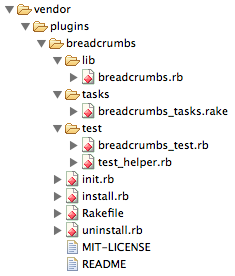
This will generate the files and directories for a plugin within the vendor/plugins/breadcrumbs directory. The files generated are shown below:

Our code from Listing 1 should be copied into the breadcrumbs.rb file in the lib directory of the plugin. We also need to add some initialization code to the init.rb file:

          require 'breadcrumbs'

          ActionController::Base.send :include, Breadcrumbs
          ActionController::Base.send :helper_method, breadcrumbs

This code ensures that the methods from the plugin are included as instance methods within the ActionController::Base class, where they’ll be accessible to controllers. However, the breadcrumbs method is also registered as a helper method, which means that it will be accessible to views, too.

This is also an improvement over the breadcrumbs code in Part 1 of this article series. The user no longer has to explicitly include the breadcrumbs code. The plugin code is automatically added to the class load path and made available to both controllers and views.

Conclusion

We’ve made some improvements to the breadcrumbs code, and we’ve packaged it up in a more reusable fashion as a Rails plugin. By doing so, we’ve also made the code a little easier for developers to use because the breadcrumbs functionality is automatically accessible to controllers and views.

We’re not done with improvements, though. Plugins have been gently deprecated in the Rails community due to their limitations, of which the primary one is their lack of a versioning capability (something that is, however, provided by gems). In Part 3 of this series, we’ll further enhance the reusability of the breadcrumbs code by converting it into a gem and, later, a gem plugin.

David Keener Speaking at “Rails 101 Night”

David Keener will be speaking, along with Gray Herter and Arild Shirazi, at the Rails 101 Night being hosted by the NovaRUG (the Northern Virginia Ruby Users Group). The night is aimed at Ruby newbies, and will be focused loosely on “rails persistence,” i.e. – how data gets stored in the database. Dave’s topic will be “Rails Tips and Tricks” — basically, a compendium of tips that Dave wished he’d had in-hand when he started programming in Rails.

Recipe: Creating an Atom Feed in Rails

Your website is now functionally complete, and it’s got a good selection of quality content to interest potential viewers. You’d like to make it easy for those potential viewers to discover your content. One of the best ways to do this is to add a feed to your site.

Feeds can be read by software referred to as a feed reader. Interested users can subscribe to your feed using their feed reader, allowing them to quickly become aware of new content when it’s added to your web site. Feed readers are widely available, so any user who’s interested in following feeds in this way should be able to find one. Even most web browsers now include a feed-reading capability.

Feeds are generally created to accomplish one of the goals below:

  • Content Distribution: A feed can contain a complete content item, such as the full text of an article or blog entry. This method allows subscribers to access the full content. Subscribers can easily extract the content and re-use it for their own purposes.
     
  • Content Notification: A feed can contain summaries of content items, such as articles, blog entries, videos, etc. Since the feed doesn’t contain the full content, it generally includes links that allow users to navigate to a URL where they can view the content. This method can be used to help drive traffic to a web site.

In this article, we’re going to create an Atom feed for the KeenerTech.com blog using Ruby on Rails, with the goal of driving traffic to the blog web site. All reasonably well-supported feed readers support both Atom and the various versions of the RSS standard. For our purposes, though, Atom is a better choice since our blog content will contain HTML tags.

The Atom Syndication Standard

The Atom Syndication Format, now at version 1.0, is a standard for syndicating content, very similar to RSS. Like RSS, information is packaged into an XML file.

Atom is, in some respects, an enhanced RSS-like standard that provides better support than RSS for diverse content types, internationalization and modularity. Many people, in fact, use RSS as an umbrella term for feed standards (e.g. — RSS 1.0, RSS 1.1, RSS 2.0, etc.) and just lump Atom in as “another” RSS standard, even though, strictly speaking, that is not correct.

What Does an Atom Feed Look Like?

An Atom feed is just an XML file that adheres to the Atom Syndication Standard. A sample Atom feed is shown in Listing 1.

Listing 1: Sample KT.com Blog Feed

<!--?xml version="1.0" encoding="utf-8"?-->
<feed xml:lang="en"
      xmlns="http://www.w3.org/2005/Atom">
   <title>KT.com Articles</title>
   <link href="http://www.kt.com/feeds"
         rel="alternate" />
   <link href="http://www.kt.com/arts.atom"
         rel="self"
         type="application/atom+xml" />
   <id>http://www.kt.com/arts.atom<id>
   <updated>2009-08-30T18:56:14Z</updated>
   <generator uri="http://www.kt.com">
      kt.com
   </generator>
   <entry>
     <title><![CDATA[Maven Introductory
         Presentation Available Online]]></title>
     <link
      href="http://www.kt.com/arts/2009/08/23/maven"
      rel="alternate">
     <id>tag:kt.com,2009-08-23:321</id>
     <author>
       <name>Steve Keener</name>
       <uri>
          http://www.kt.com/profiles/steve_keener
       </uri>
     </author>
     <updated>2009-08-24T01:26:16Z</updated>
     <published>2009-08-23T00:00:00Z</published>
     <summary type="html">My presentation,
        <a href="http://www.kt.com/docs/Maven.pdf">
        Maven: Managing Software Projects for
        Repeatable Results</&;gt;, is now available
        online. Find out how to leverage this
        sophisticated build tool to automate
        key tasks for your next Java project.
     </summary>
</entry></feed>

Feed Summary Elements

The summary section of the Atom feed consists of the elements defined in Table 1. An asterisk indicates elements that are required to be present for a valid Atom feed. Notes about how the element will be handled for the feed we are building in this article will be in italics.

Table 1: Feed Summary Elements

Element Description
author This element provides information about the author of the feed. Data about the author is contained in one or more child elements.

According to the standard, an author element must be provided within the feed, but there are two valid ways to specify this information. If it appears in the summary section, then it represents the author of the entire feed. Alternatively, each entry must have an author element, which would describe the author of each entry.

In this article, we’re building an Atom feed for a blog, so each entry will have its own author element. Accordingly, no author element will appear in the summary section of the XML output.

generator This element defines the software or web site that created the feed.

For this feed, the feed generator will be defined as “KT.com.”. The “uri” attribute of the element will provide a link to the KT.com website.

id * This element defines a unique and permanent identifier for the feed. In practice, the id is typically defined as the full URL of the feed. Note that the Atom standard considers this value to be an id; under no circumstances should it be treated as a URL. If a URL for the feed is needed, use the “link” element instead.
link The link element provides a URL for a resource related to the Atom feed, with the URL provided in the “href” attribute. The meaining of the link is defined by the “rel” attribute. A feed can include multiple link elements, but only one link for each valid “rel” value.

Our Atom feed will include two link elements in the summary section, one with the “rel” element is set to “self” — indicating that the URL is a self-referential link to the Atom feed itself. The other link element will have its “rel” element is set to “alternate,” indicating that the URL is a link to additional information about the feed.

title * The title of the feed.
updated *

The date/time that this instance of the feed was updated significantly. Date/time values are in the following format:

     2009-04-24T00:00:00Z

The values are in GMT, and show a four-digit year, a two-digit month and a two-digit day. The “T” character serves as a separator between the date/time portions of the value. The date value is terminated with the “Z” character. Note that it’s the “Z” character at the that implies GMT; otherwise a specific offset from GMT can be specified.

The simplest solution, and the one that I recommend, is to specify that dates using GMT. People who use the feed can easily translate that into an appropriate date for their timezone if they need to.

Entry Elements

The Atom feed includes one or more entries, where each entry provides information about a blog entry. The Atom Syndication Format provides a set of standard elements for describing content entries.

Table 2: Standard Atom Entry Elements

Element Description
author This element provides information about the author of the entry. If the entry has multiple authors, then the element will appear multiple times. Within the author element, information about the author is contained in one or more child elements. The “name” element is required. There are also two optional sub-elements, “email” and “uri”. The “uri” is typically either the URL of the author’s blog site or the URL of a profile page that provides more information about the author.

According to the standard, an author element must be provided within the feed, but there are two valid ways to specify this information. If it appears in the summary section, then it represents the author of the entire feed. Alternatively, each entry must have an author element, which would describe the author of each entry.

In our blog’s Atom feed, each entry will have its own author element. Additionally, since our blog entries can only have a single creator, only one author element will be provided for each entry.

content This element contains the full content of an entry.

We’re not going to provide a content element for our feed because we’re not trying to distribute the blog’s content. Instead, we’re trying to notify potential viewers of the content that we have available, and entice them to go to the web site. So, we’ll provide a summary of the content rather than the full content.

id This element contains a well-formed URI for a entry. A sample entry id is shown below:

     tag:keenertech.com,2009-08-16:322

link The “href” attribute of the link element specifies the URL for a web page that shows detailed information about the entry.
summary Provides a short abstract of the entry.
title A human-readable title describing the entry.
updated The date/time that this entry was last modified. Date/time values are shown in the same format as the “updated” element of the feed summary section.

Onwards to the Code

Implementing an Atom feed in Ruby is a straight-forward task. Ruby provides the Builder module which automates creating XML documents. The general technique shown in most technical books is to create a controller that retrieves a list of content items from the database. The controller then makes that list available to a view, which includes Builder code to generate the necessary XML.

My technique is a little different. In Listing 2, I pull the Ruby code to produce the feed into the model. By doing this, it’s easier to write unit tests for the Atom generation code. It’s also easier to share the code if you need to produce multiple Atom feeds, e.g. — a separate feed for each category.

Listing 2: The Ruby Code Behind the Atom Feed

 class Entry < ActiveRecord::Base

    def self.generate_atom_feed(title, entries, options = {})
      feed_ref_url = 'http://www.kt.com/feeds'
      feed_url = 'http://www.kt.com/arts.atom'
      base_entry_url ='http://www.kt.com/arts/'
      buffer = ''
  
      xml = options[:builder] ||= Builder::XmlMarkup.new(:indent => 
        options[:indent], :target => buffer)
      xml.instruct! :xml, :version=>'1.0', :encoding=>'utf-8'
  
      xml.feed 'xmlns' => 
          'http://www.w3.org/2005/Atom', 'xml:lang' => 'en' do
        xml.title title
        xml.link 'rel' => 'alternate', 'href' => feed_ref_url 
        xml.link 'rel' => 'self', 
                 'href' => feed_url,
                 'type' => 'application/atom+xml'
        xml.id feed_url
        xml.updated Time.now.utc.strftime("%Y-%m-%dT%H:%M:%SZ")
        xml.generator 'KT.com', 'uri' => 'http://www.kt.com'
  
        entries.each do |entry|
          if !entry.name.nil?
            xml.entry do
              # Create Atom entry elements
              xml << "    <![CDATA[" + entry.name + "]>\n"
              xml.link  "rel" => "alternate", 
                "href" => base_entry_url + 
                entry.display_date.strftime('%Y/%m/%d/') + entry.url_name
  
              xml.id "tag:kt.com,#{entry.display_date.strftime
                ('%Y-%m-%d')}:#{entry.id}"
              xml.author do
                xml.name "#{entry.user.first_name} #{entry.user.last_name}"
                xml.uri entry.user.first_name + "_" + entry.user.last_name
              end
              xml.updated entry.updated_at.strftime("%Y-%m-%dT%H:%M:%SZ")
              xml.published entry.display_date.strftime
                ("%Y-%m-%dT%H:%M:%SZ")
              xml << "    " + 
                 Entry.escape_html(entry.summary) + "\n"
            end
          end
        end
  
      end
      
      buffer
    end
  
  protected

    def self.escape_html(str)
      return str.to_s.gsub('&', '&').gsub('<', '<').gsub('>', '>') if str
    end

 end

In the code above, I’ve hard-coded the feed paths. If I were to generalize this code to produce multiple Atom feeds, such as for different categories, I’d need to re-factor this code slightly since each feed should have its own distinct URL.

To produce the XML, the caller must pass in the title of the feed, the list of entries to be included in the feed and any options. The options are passed directly to Builder::XmlMarkup; the only option that is really supported is the “:indent” option, which specifies how many spaces each level of XML should be indented. The Builder::XmlMarkup object will direct its output into the “buffer” string.

The Builder::XmlMarkup object makes it easy to produce XML. A statement like:

xml.title title

will produce the XML below:

<title>KT.com Articles</title>

Likewise, a statement like this:

xml.generator ‘KT.com’, ‘uri’ => ‘http://www.kt.com’

will produce an XML element that includes both content and an attribute:

<generator uri=”https://www.keenertech.com”>KeenerTech.com</generator>

Since I’ve pulled the Atom generation code into the model, the controller will need to call the Entry.generate_atom_feed method in order to produce the output. The controller will then receive the XML as a string, which it will then render without benefit of a view. The controller code is shown in Listing 3.

Listing 3: Controller Code

  def index
    @articles = Entry.find(:all, 
                           :include => :user, 
                           :order => "entries.display_date desc")
                           
    respond_to do |wants|
            wants.html do               
              render :layout => 'kt' 
            end
            wants.atom do
              xml = Entry.generate_atom_feed('KT.com Articles',
                @articles, :indent => 2)
              render :text => xml, :content_type => 'application/atom+xml'
            end
          end     
  end

The controller generates the list of articles using the find method. Note that it uses the “:include” option to incorporate user information into the list. Since the user information has been pre-fetched by find, traversing from an entry to its corresponding user will not generate additional database calls (which is something that the Atom generation code will be doing).

The controller uses the respond_to statement to determine what type of content the caller wants to produce. If HTML, Rails will use a view to generate the appropriate HTML output. If the caller has specified Atom, then the code generates the Atom output by calling the model. It then renders the content directly.

Does this break the MVC paradigm? It probably bends the rules a little bit, but the advantages outweigh the disadvantages.

The primary advantage is that the code for producing the Atom output is centralized in the model, where it can easily be shared and unit-tested. Meanwhile, the model and controller still have clearly defined roles in producing the output.

The model simply produces the output; it doesn’t render it. The controller determines what data elements will appear in the feed, gets the Atom output from the model and then causes the output to be rendered. While the controller causes the content to be rendered, it doesn’t otherwise manipulate it. We could have a view that renders the Atom output string, but it seems kind of pointless to have a one-line view.

Atom Validation

After producing the feed, you should validate it using the Feed Validator. This free service will perform a detailed analysis of Atom and RSS feeds. It produces excellent diagnostic output, as well as good recommendations for items that optional. Don’t even think about considering your feed to be “finished” until you’ve successfully validated it.

References

There are a number of relevant references available that can be useful for those producing Atom feeds:


Rails Tips for Migrations

Migrations are a wonderful feature provided by the Rails framework. They provide an organized mechanism for building the database for an application, and are a distinct improvement over the random assortment of undocumented SQL scripts used by most projects.

The concepts behind migrations are so simple that you’d think that it would be difficult for anything to go awry.

You’d be wrong. 

Here are some tips for getting the most effective use out of migrations in Rails.

  1. Down Methods: The down method of each migration should correctly back out the changes created by the up method. There is a tendency for developers to either skip the down method, or to implement the downmethod and then not test it effectively. Neither reason for an ineffective down method is acceptable.It is valid for some migrations to be non-reversible, but this should definitely not be the rule. Migrations that perform data conversions are often not reversible. Even if this is the case, a related group of migrations should be reversible whenever possible.
     
  2. Performance: Migrations are executed in development, test and production environments. To reduce the impact on customers, it is common for production applications to be brought down while database updates are occurring. A poorly performing migration can keep your production applications offline for an unacceptable amount of time. Remember that production databases often have much more data than development and test environments. Make sure that your migrations, particularly those that perform data conversions, run as efficiently as possible.
     
  3. DSL: Rails provides a nice Domain-Specific Language (DSL) for manipulating database tables in migrations. Use it.Only use SQL directly when the DSL cannot easily perform the task that is required. Using the DSL also has the added advantage of keeping your migrations database-agnostic, which will be beneficial if a change in database vendor is ever proclaimed by management.
     
  4. Sets: Sometimes new requirements are received that require a sweeping set of changes affecting multiple tables in a database. Often, the changes have no value individually, but must instead be implemented as a complete set in order to be useful. If the changes are relatively simple, they can all be incorporated into a single migration.On the other hand, more complex changes should probably be grouped into a set of migrations, with one migration for each table impacted. It’s up to teams to develop their own convention for organizing migrations into sets, since there is no generally accepted convention for Rails migrations. One possible solution is to use the second term of a migration name to indicate a set, if applicable. In the example below, “release2” is used to indicate that the migrations are part of a set.
     
          046_release2_create_subscription.rb
          047_release2_modify_distributor.rb
          048_release2_modify_user.rb
          049_release2_remove_old_tables.rb
     
    The first term, of course, is either a sequential number or a timestamp, depending on how the development team wants to organize the migrations. Support for timestamps in migration names was added in Rails 2.0.
     
  5. Migration Sprawl: Sometimes the number of migrations mushrooms more than is needed. Imagine a situation in which numerous database changes are needed, and multiple people are working on the changes. Each person creates multiple migrations, some of them affecting the same tables. If all of the migrations are going to go into production at the same time, it may make sense for some consolidation to be done. For example, if there are six migrations affecting the same table, it may be more effective to have all of those changes done in one migration. The migrations will make more sense to users, and it will be easier for testers to verify that all of the changes have been done properly.

Creating a Breadcrumb Trail in Rails, Part 1

A common feature of many web sites is what’s known as a breadcrumb trail, or sometimes a rabbit trail. A breadcrumb trail is just a listing, generally on one concise line, of the pages that have been traversed in a hierarchy to get to the current page. Each element of the breadcrumb trail is a link to that previous page, and there’s usually some character or image separating the elements of a rabbit trail.

Antimatter < Tools < Home

I decided to create some code in Ruby that would facilitate the creation of breadcrumb trails for Rails web sites. Listing 1 shows the code that I came up with. My goal, of course, was to make this a generic solution that could easily be reused in numerous web sites. 

In this article, I’ll just focus on presenting the code that generates the breadcrumbs. In a follow-up article, I’ll detail some strategies for packaging up this type of feature to facilitate code reuse.

Listing 1: Helper Code for Breadcrumbs – breadcrumbs_trail.rb

module BreadcrumbsTrail

  # Defines the separator used between breadcrumb elements when
  # the breadcrumbs are traversed from right to left, i.e. - the
  # separator points to left.

  def breadcrumb_separator_left
    "<"
  end

  # Defines the separator used between breadcrumb elements when the
  # breadcrumbs are traversed from left to right, i.e. - the separator
  # points to the right. This is the direction in which most
  # breadcrumbs are oriented.

  def breadcrumb_separator_right
    ">"
  end

  # Returns TRUE if the provided value is an external URL and FALSE if
  # it represents the name of a controller. External URL's can be easily
  # distinguished because they begin with "http://".
 
  def is_external_breadcrumb(val)
    val.start_with?('http://')
  end

  # Returns a string containing the HTML for one breadcrumb link within
  # a breadcrumb trail. The first argument is the title of the link, while
  # the second is an array containing the components necessary to build
  # the destination URL for the link.
  #
  # WARNING: Does not work in controllers because the link_to method
  # is only available to views.

  def build_crumb(title, args)
    str = ""
    if is_external_breadcrumb(args[0])
      str += "<a href='#{args[0]}'>#{title}</a>"
    else
      cmd = "link_to '#{title}', :controller => '#{args[0]}'"
      cmd += ", :action => '#{args[1]}'" unless args.size < 2
      str += "#{eval cmd}"
    end
    str
  end

  # Returns a string containing the HTML necessary to display a breadcrumb
  # trail. The first arg contains an array of elements, where the first
  # element is the name of a breadcrumb, the second is an array containing
  # values for assembling a URL (controller, controller & action, or
  # external URL), and so on in alternating fashion. The final arg is a
  # hash containing options, where the only option currently defined
  # is ":direction". This can have values of either "left" or "right", and
  # governs which way the breadcrumbs will be oriented. The default
  # is "right".
  #
  # An example of the method's usage in a view is:
  #
  # <%= show_breadcrumbs(
  #        ['Home', ['main'],
  #         'Tools', ['tools'],
  #         'Antimatter', ['tools', 'antimatter']], 
  #        :direction => 'left') %>

  def show_breadcrumbs(crumbs, opts = nil)
    direction = 'right'                        # Default direction
    separator = breadcrumb_separator_right     # Default separator
    if opts != nil
      dir = opts[:direction]
      if dir == 'left'
        direction = dir
        separator = breadcrumb_separator_left
      end
    end
 
    str = ""
    if crumbs.size > 0
      str += '<div id="breadcrumbs">'
      if direction == 'right'
        i = 0
        while i < crumbs.size
          args = crumbs[i + 1]
          str += " #{separator} " if i > 0
          str += build_crumb(crumbs[i], args)
          i += 2
        end
      else # Direction equals left
        i = crumbs.size - 2
        while i >= 0
           args = crumbs[i + 1]
           str += " #{separator} " if i < (crumbs.size - 2)
           str += build_crumb(crumbs[i], args)
           i -= 2
        end
      end
      str += '</div>'
    end

    str
  end

end

In Listing 1, the show_breadcrumbs method is the real workhorse, i.e. – the method that users are expected to use to generate their breadcrumbs trail. The code can be included within a helper, such as application_helper.rb. From there, the code would be accessible to all views within a Rails application.

Within a view, the show_breadcrumbs method could be called to generate the HTML for the breadcrumb trail:

       <%= show_breadcrumbs(
          ['Home', ['main'], 
           'Tools', ['tools'],
           'Antimatter', ['tools', 'antimatter']],
          :direction => 'left') %>

The first argument is an array, where each breadcrumb element is represented by a pair of array entries. The first value is the name of the breadcrumb, e.g. – the name of the link. The second is an array containing the data necessary to construct the link, such as [controller, action] or [url].

After the initial array argument, the method accepts options. The only currently supported option is “:direction” which can have values of “left” or “right” to define the direction of flow for the trail.

Paths Not Chosen

Is a breadcrumb trail an element of a view? Or should the generation of a breadcrumb trail be the responsibility of a controller?

There’s no right answer, but I chose to consider it part of a view. I placed the breadcrumb generation code in application_helper.rb, which makes it available to all of the views in a Rails application.

      include BreadcrumbTrail

The code could just as reasonably be included in a controller. Of course, it wouldn’t work as-is because the build_crumb method won’t work in a controller. It uses the link_to helper method, which is only available in views. Still, if the method were rewritten to be independent, it could be used in a controller.

The obvious location to reference the library would be application_controller.rb, which would make the code available to all other controllers.

A controller could generate the HTML for a breadcrumb trail as shown below:

       @trail = show_breadcrumbs(
          ['Home', ['main'],
           'Tools', ['tools'],
           'Antimatter', ['tools', 'antimatter']],
          :direction => 'left')

The @trail variable will be visible to the associated view. The breadcrumb trail could be included within a view as shown below:

       <%= @trail %>

Another design decision that I made was to use an array to represent the elements of the breadcrumb trail, with each element represented by two entries within the array. At first glance, it would seem more logical to use a hash. After all, it would be easy to set up a hash with entries for “Home,” “Tools,” and “Antimatter.” 

The value for each hash entry would then be an array. The downside is that a hash doesn’t guarantee the order in which the keys are stored, which makes it problematic to retrieve the breadcrumb entries in the proper order. So, the hash is out as a solution.

Note: Hash order is not guaranteed in Ruby 1.8.x. However, in Ruby 1.9 the hash order will be preserved, which will potentially make hashes a lot more useful.

Conclusion

We’ve ended up with a relatively simple set of methods for generating breadcrumbs. It probably doesn’t handle all cases, but it handles most of the likely ones. As a fall-back, users can explicitly provide a URL for the link, which should allow users to handle cases where controller and action are not sufficient to build a full URL for the link.

It’s not an ideal solution, though. A high proportion of users are likely to want to generate a trail in a controller, which this code doesn’t support. Plus, the array syntax for defining a breadcrumb trail still seems a little cumbersome, though still workable.

In Part 2 of this article, we’ll look at some ways to futher improve this solution.

Shenandoah Speaking Engagement

I have been asked by the Shenandoah Ruby Users Group to give my OpenID/Rails presentation to their membership. I’m scheduled for June 24, 2008 at their regular meeting locale, which is the headquarters of Rosetta Stone in Harrisonburg, VA.